Navigate to the Form: https://forms.gle/Z14pwaXEdzFWumoy9
1.
Navigate to the portal website: https://oms-ks5pl.xlwms.com
2.
Enter your account credentials to log in.
3.
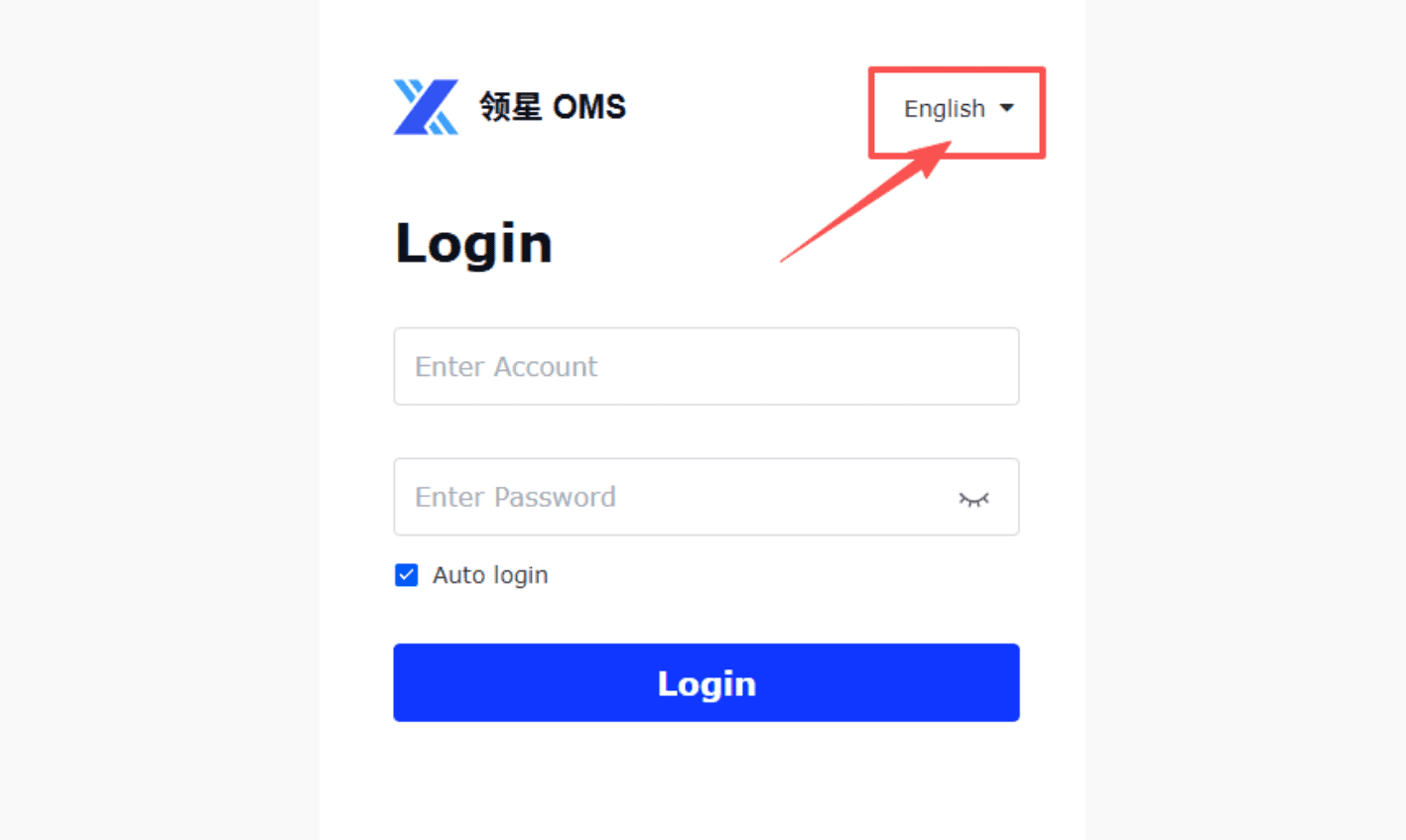
You can switch the interface language (e.g., English/Chinese) from the top-right corner
1.
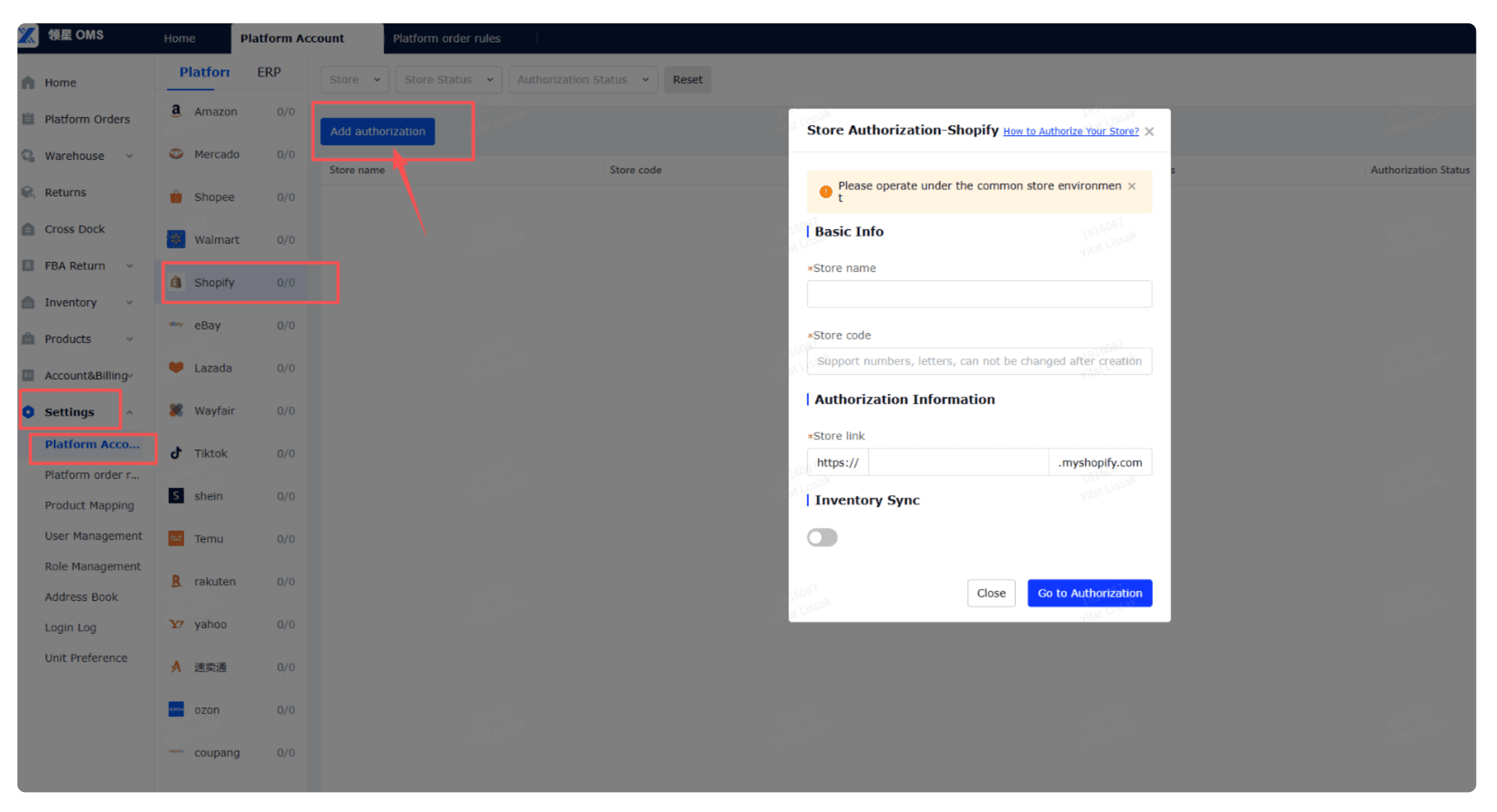
Navigate to Settings → Platform Account.
Select Shopify and ddd authorization.
2.
Grant Shopify Order View Permission
Please send a staff invite to info@ks5pl.com with access permissions for: Orders, Products, and Apps. So we can access orders in your Shopify store.
3.
Install the LabelBridge app from the Shopify App Store.https://apps.shopify.com/label-bridge After installation is completed, our team will assist with account linking and system integration.
Option 1
Please create the product in OMS, but since the SKU in OMS requires our approval, kindly fill in the product information in the Google Sheet below. We will create it for you and notify you once it’s completed.

Option 2
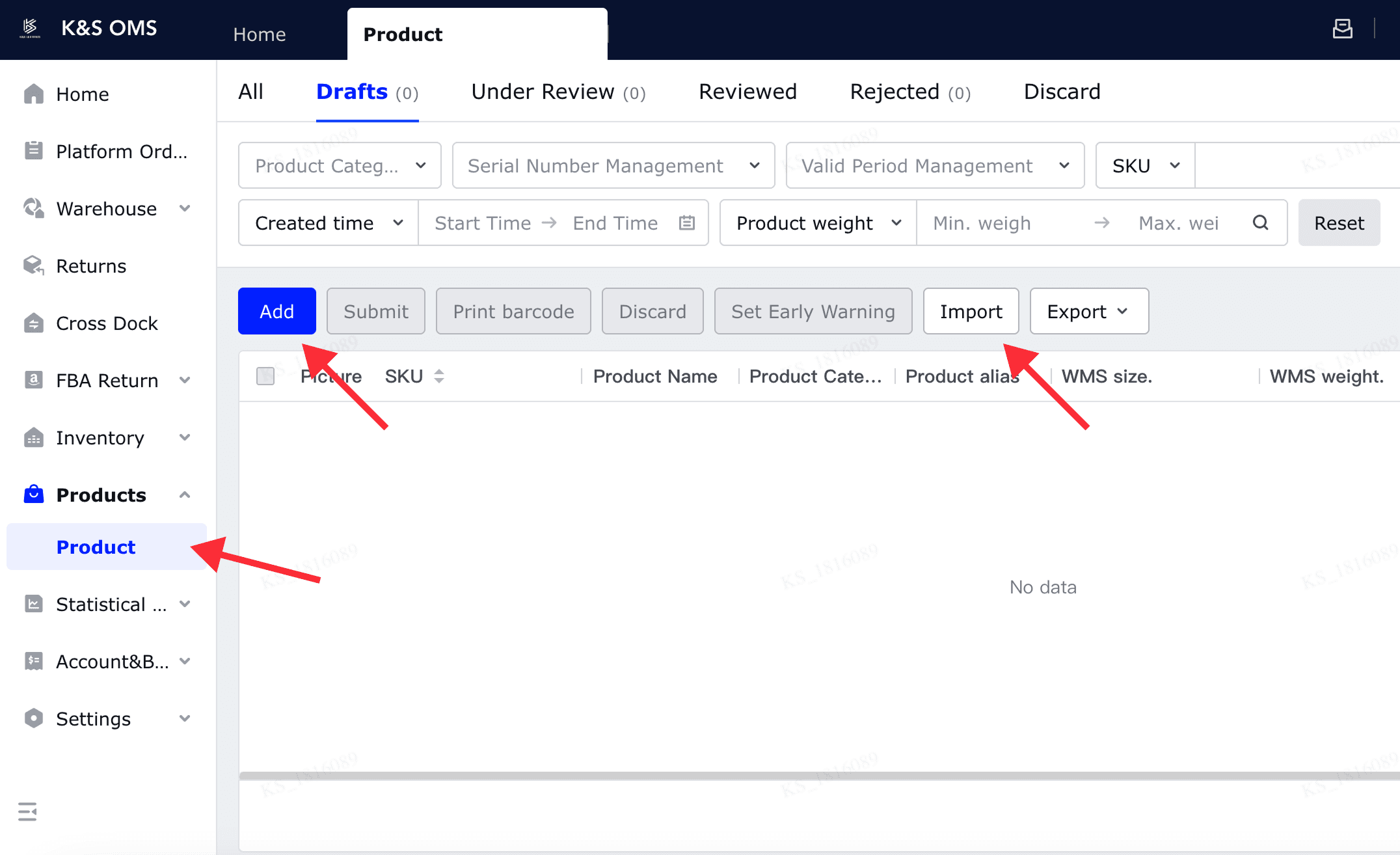
You can create SKUs directly in the OMS system. Click “Add” to manually add a single product, or use “Import” to add products in bulk.
1.
Once the product has been created, you can proceed to create the inbound order.
2.
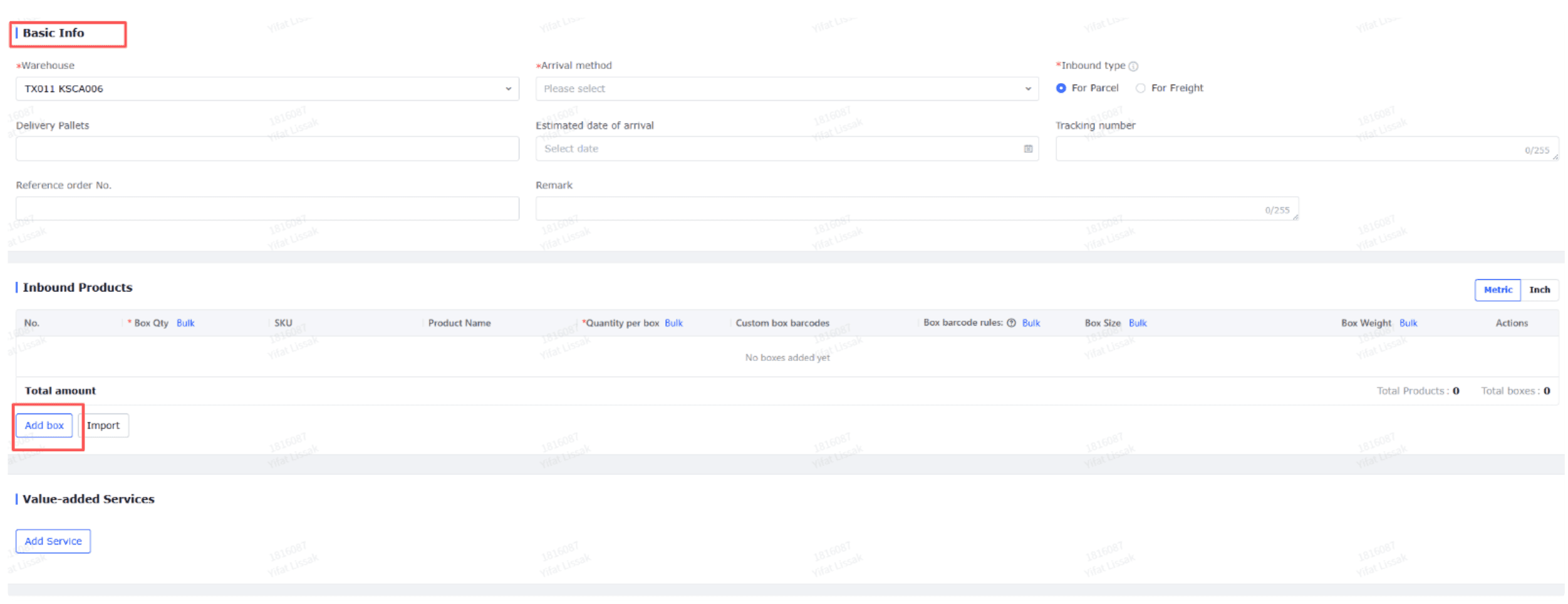
Go to Warehouse → Inbound → add.
3.
Fill in the fields marked with an asterisk (*). Select the products to be received.
4.
Arrival method: If it is express delivery to the warehouse,choose Pacel, if it is palletized, choose Pallet.If it is container, you can choose the corresponding one according to the size of the container. If you choose express delivery, you need to fill in the Tracking number. If it is palletized, you need to fill in the number of pallets in Delivery Pallets.
5.
Submit the order for processing.
1.
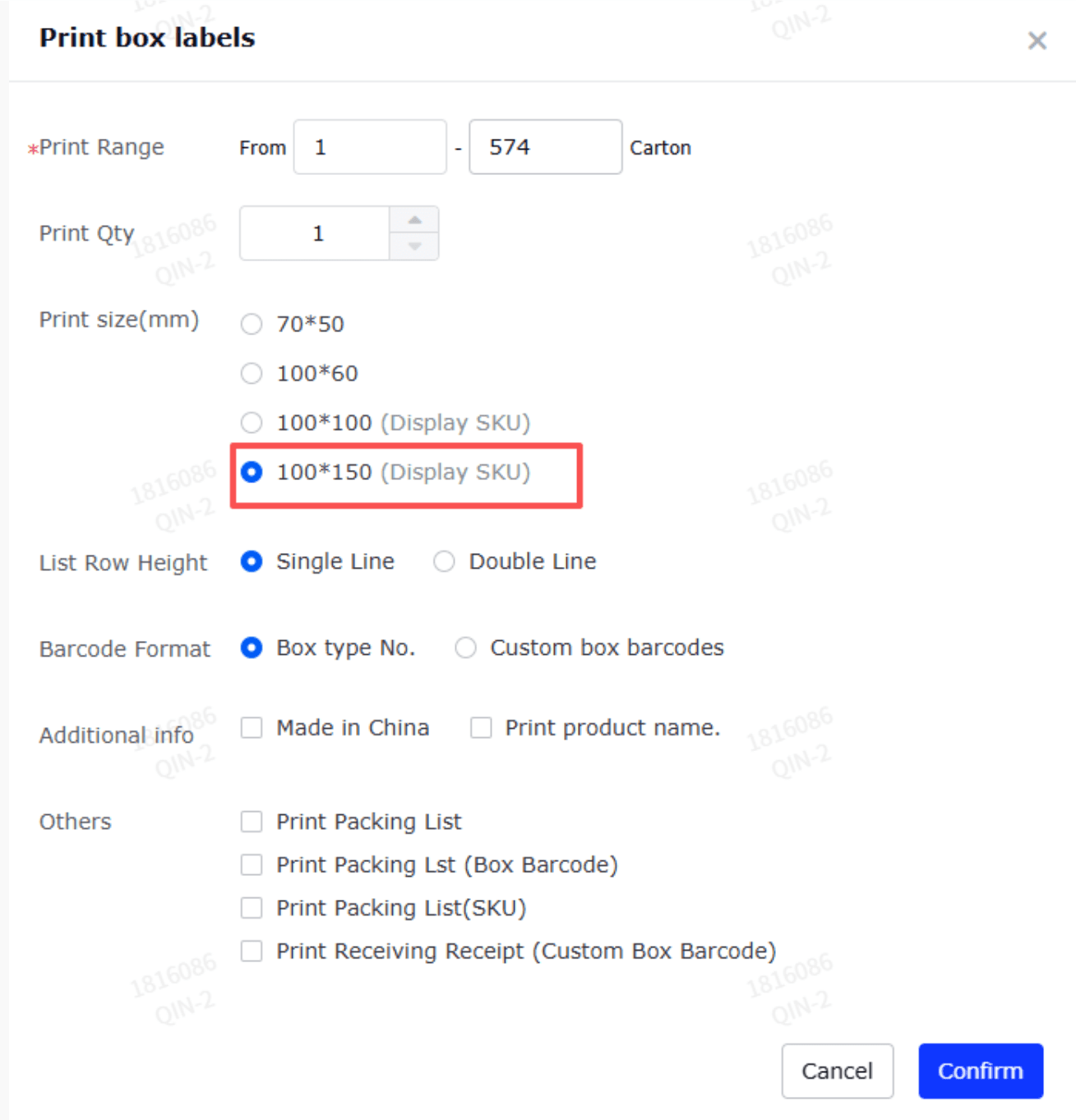
After creating the inbound order, go to More → Print box labels

2.
Choose 100*150 and confirm.
3.
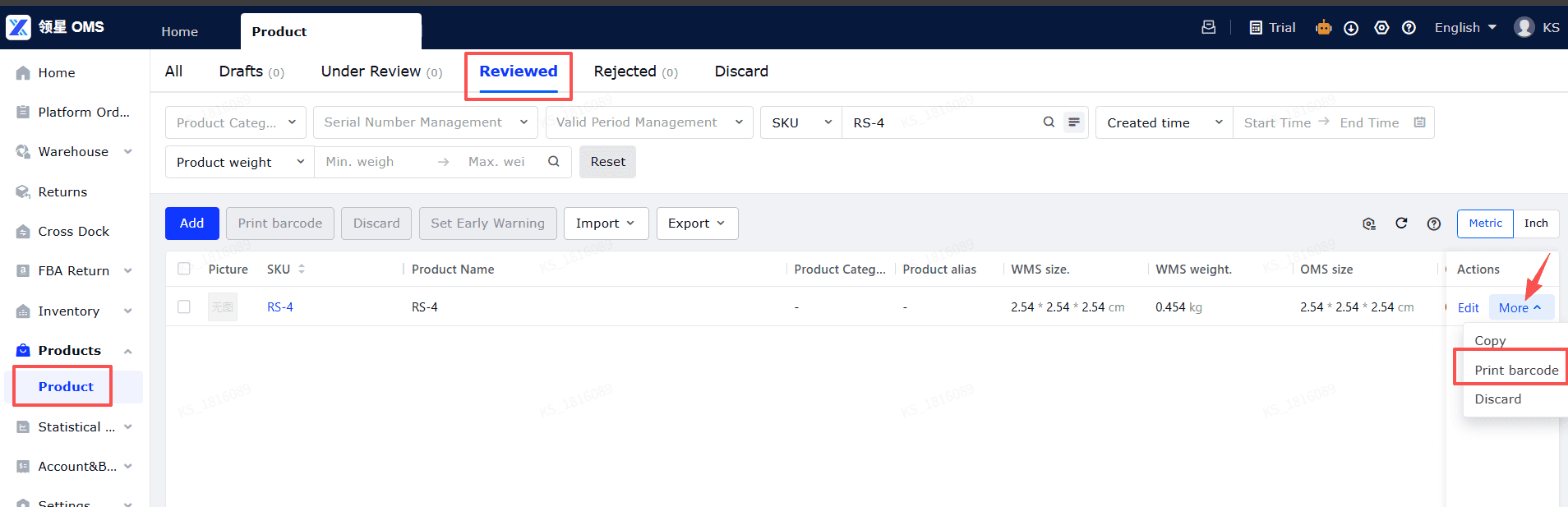
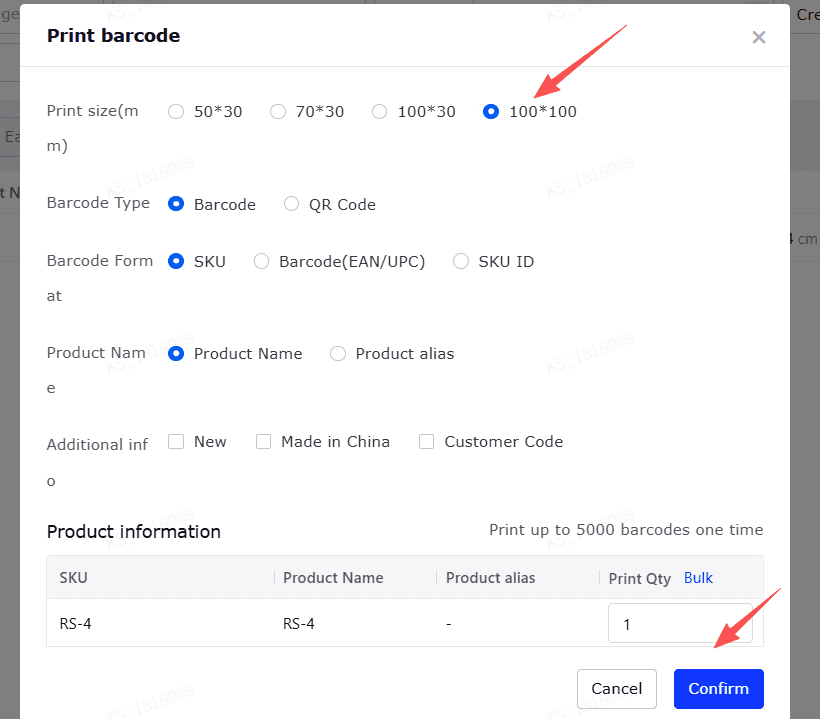
Please also print SKU labels, choose 100*100 and confirm.
4.
Download and print both the carton labels and SKU labels. Attach the carton labels to each outer carton and apply the SKU labels to each individual unit as required before shipment.
1.
Navigate to Inventory → SKU Inventory.
2.
Search by SKU or product name to view available, reserved, and in-transit quantities.